
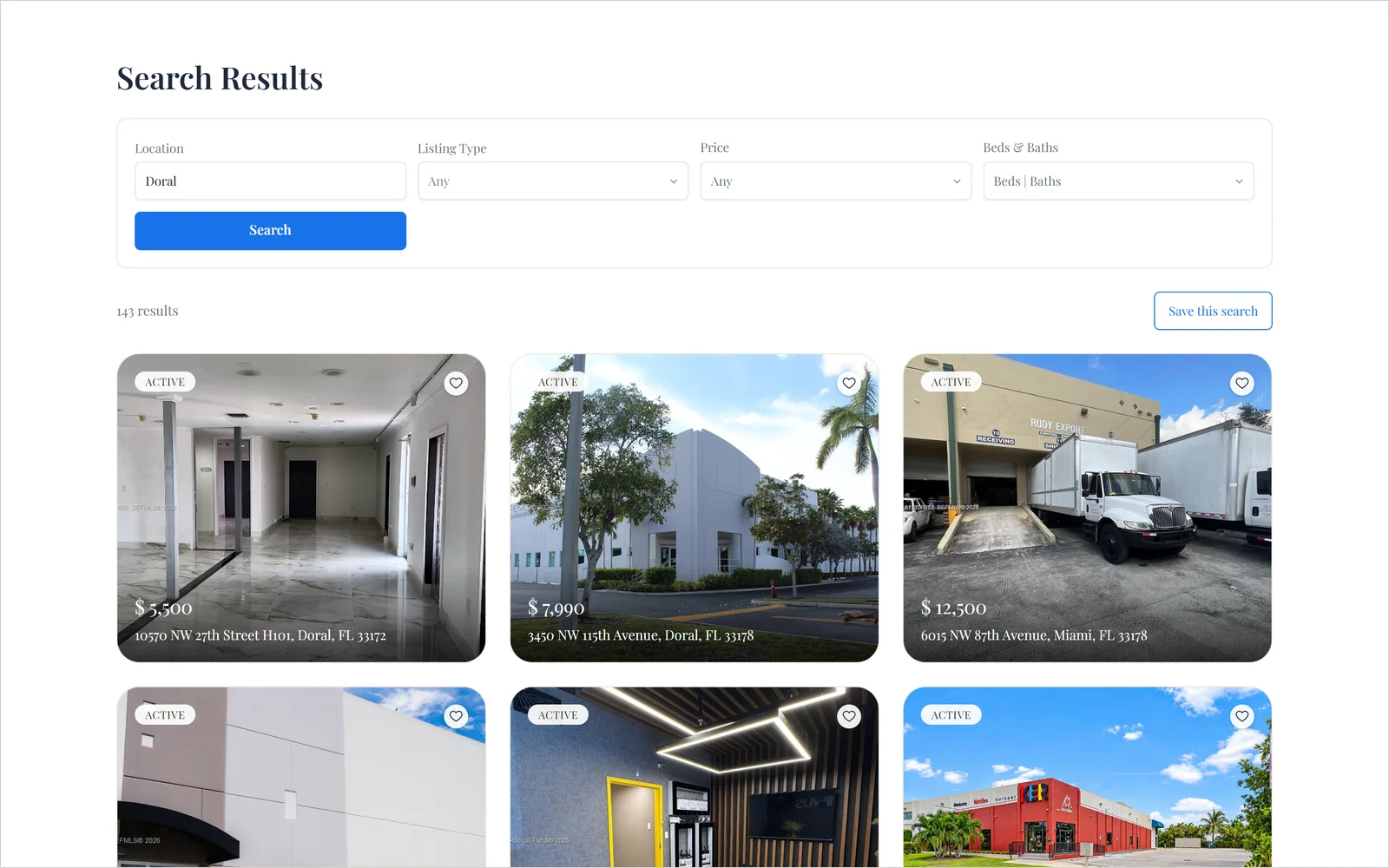
The search results page shows the listings a visitor searched for. A visitor types a city in your Search Form, clicks Search, and lands on this page.
You can show the results in two ways:
- Standard search results: listing cards with a search bar on top.
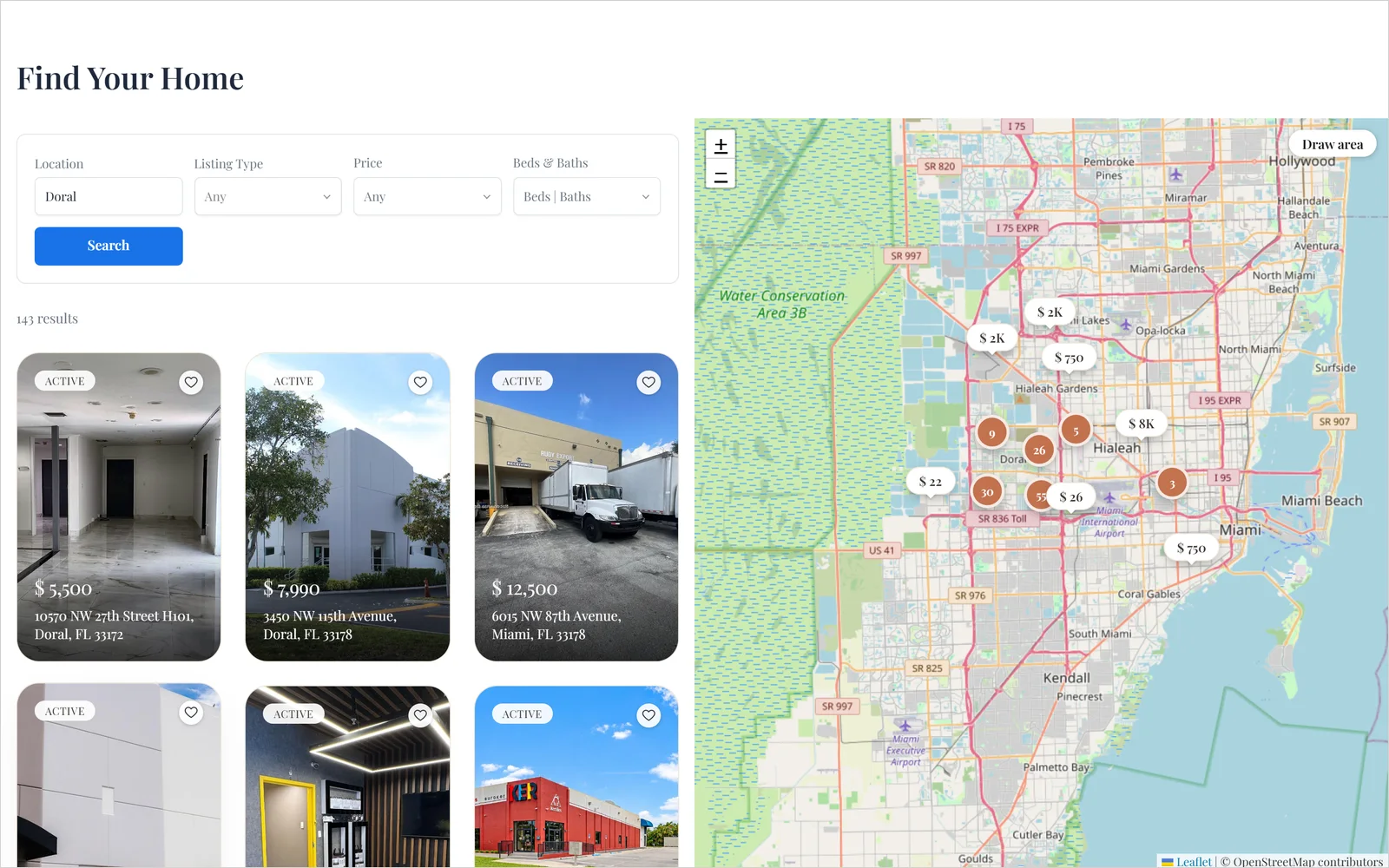
- Half Map search results: listing cards on one side, a map on the other.
Pick one, then follow the steps for the builder you use.
Standard search results
If you use Gutenberg (the block editor)
Use the Search Results block.
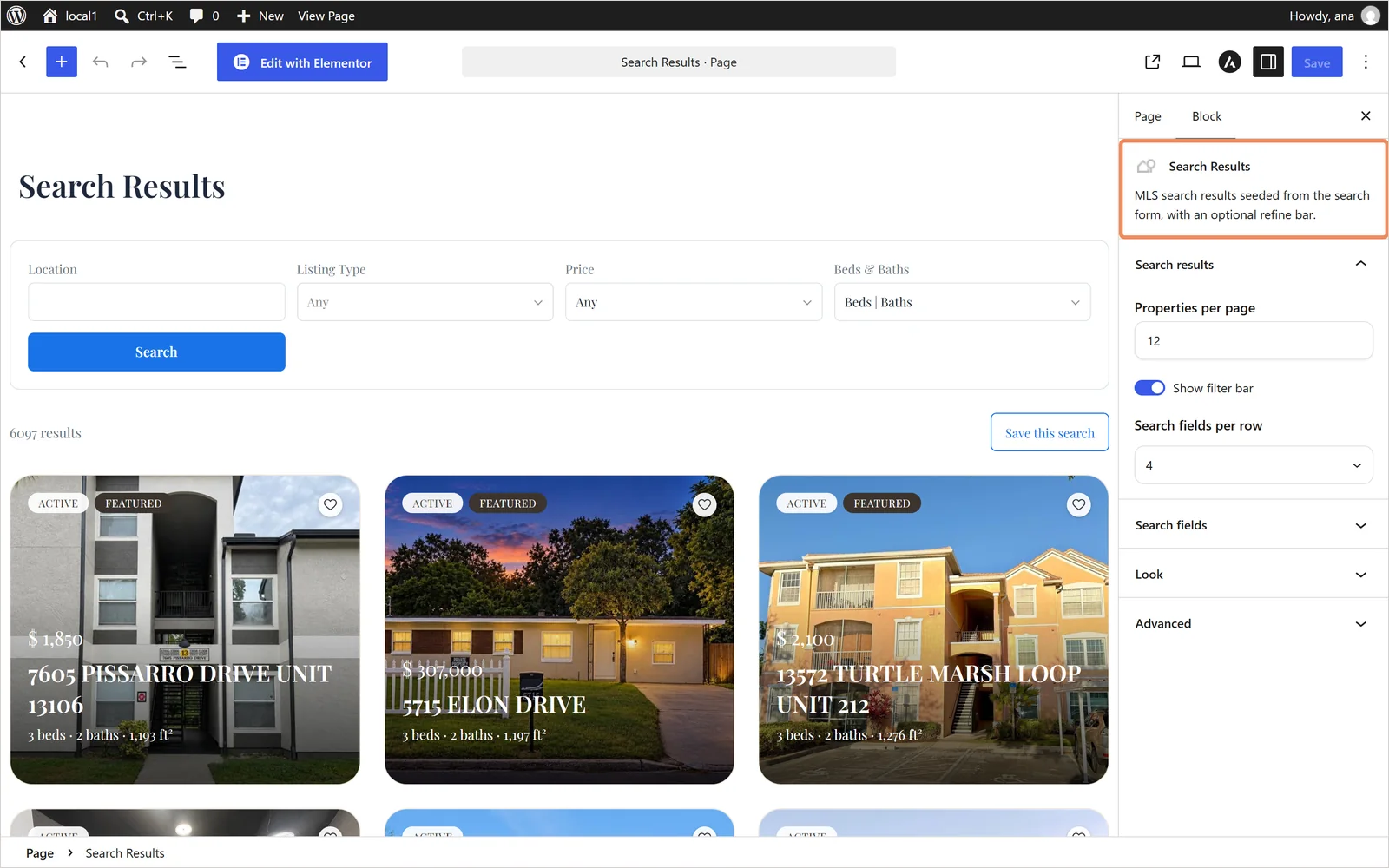
- Go to Pages > Add New Page. Name it, for example, Property Search.
- Click the + button at the top left.
- Type Search Results in the search box and click the Search Results block.
- In the right sidebar, under Search results, set Properties per page (default 12), Show filter bar (on by default) and Search fields per row (3, 4, 5 or 6; default 4).
- Open Search fields and switch on the fields you want in the search bar.
- Click Publish.
If you use Elementor
Use the Search Results widget.
- Go to Pages > Add New Page. Name it, for example, Property Search.
- Click Edit with Elementor.
- In the left panel, open MLSImport Widgets and drag Search Results onto the page.
- In the Content tab, set Per page (default 12), Show filter bar (on by default) and Search fields per row (3, 4, 5 or 6; default 4).
- In Search fields, type the field names with commas, for example
location,listing_type,price,beds_baths. Leave it empty to show all fields. - Click Publish.
If you use another builder (shortcode)
Use this shortcode:
[mlsimport_property_list_filters]
- Create a page, for example Property Search.
- Add a shortcode element to the page and paste the shortcode.
- Publish.
To set the number of listings and the fields per row:
[mlsimport_property_list_filters count="12" fields_per_row="4"]
Half Map search results
If you use Gutenberg (the block editor)
Use the Half Map block.
- Go to Pages > Add New Page. Name it, for example, Find Your Home.
- Click the + button at the top left.
- Type Half Map in the search box and click the Half Map block.
- In the right sidebar, under Listings, set Properties to display and Search fields per row.
- Open Search fields and switch on the fields you want in the search bar.
- Click Publish.
If you use Elementor
Use the Half Map widget.
- Go to Pages > Add New Page. Name it, for example, Find Your Home.
- Click Edit with Elementor.
- In the left panel, open MLSImport Widgets and drag Half Map onto the page.
- In the Content tab, under Settings, set Properties to display and Search fields per row.
- Open Search fields and switch on the fields you want in the search bar.
- Click Publish.
If you use another builder (shortcode)
Use this shortcode:
[mlsimport_half_map]
- Create a page, for example Find Your Home.
- Add a shortcode element to the page and paste the shortcode.
- Publish.
Last step: connect your search form
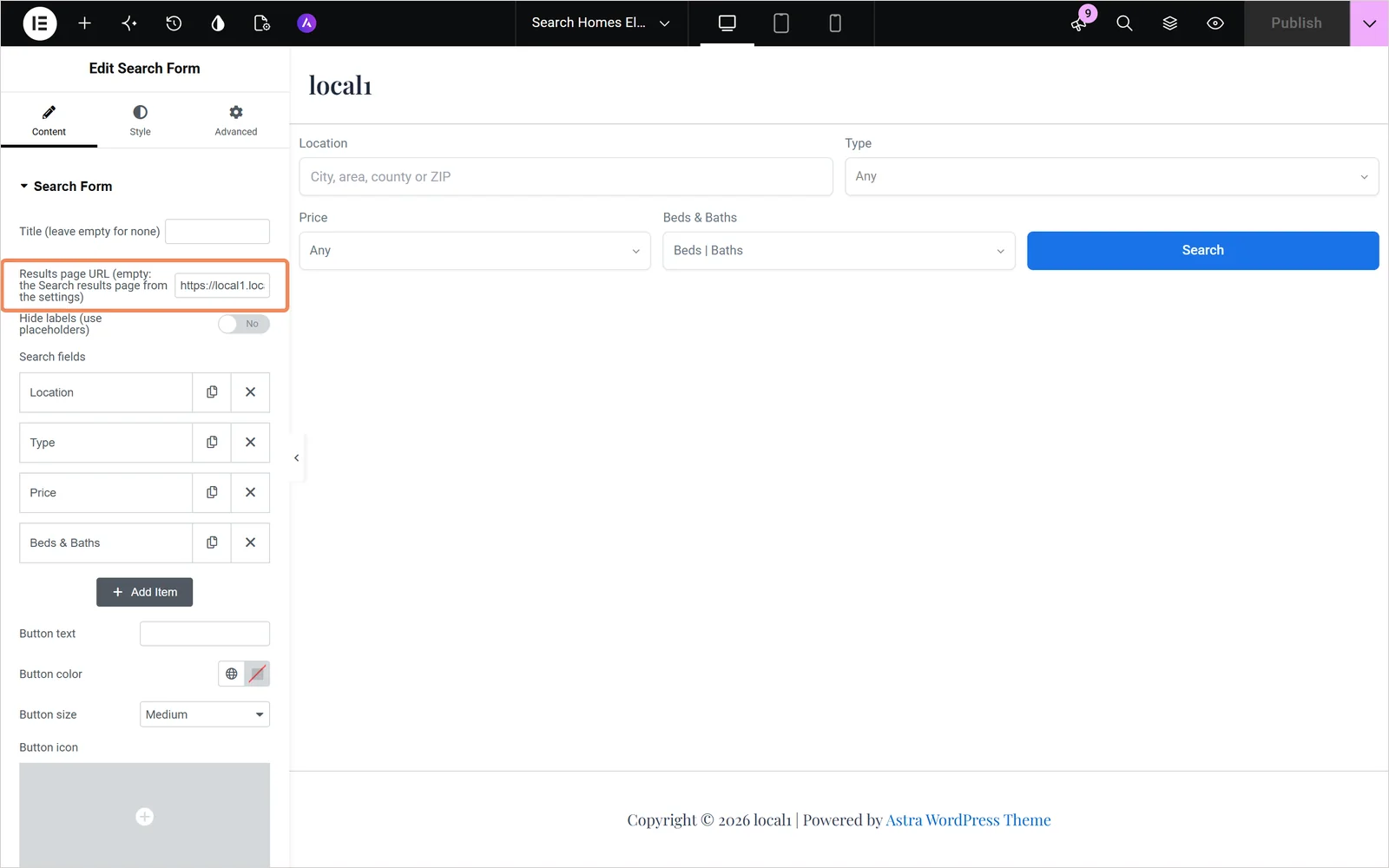
Copy the address of the results page you made. Open the page with your Search Form and paste the address into Results page URL. The Search Form block has the steps for each builder.
Check it: open your search form, type a city and click Search. You land on the results page with that city’s listings.
If it does not work
- Every search shows all listings. The search form points to a different page. Check Results page URL on the search form.
- Every search shows the same listings. A page cache is serving one copy of the page. Exclude the results page from caching.
- A search finds nothing. The value must match the MLS spelling. Check the terms in wp-admin.
Frequently asked questions
Can I use Property List instead and skip this block?
Only if you do not need a search form. Property List filters from its own settings and ignores what a visitor submitted, so a form pointed at a page holding it produces the same results every time.
Can visitors bookmark or share a search?
Yes. The criteria live in the page address, so the link reproduces the same search for anyone who opens it, subject to listings having changed since.
Can I have more than one results page?
Yes. Point different forms at different pages, for example a rentals search and a sales search, each with a refine bar carrying the fields that matter to it.
Related
- The Search Form block
- The Property List block
- The Half Map block
- Building your pages: blocks, shortcodes and Elementor widgets
Send us your search page and the search that came back wrong and we will trace it.
